Overview
This article is an overview of the EPCIS: Orders page and how to scan in and process shipments.
Get Started
- Login into OneScan account.
- Click on the EPCIS tab at the top of the screen.
- Click on “Orders” from the drop-down menu.
- This is where you can find all the inbound and outbound EPCIS data for all current and past orders.
- Make your you are in the “Inbound” tab.
- Locate the order that is being scanned in.
- Use filters by clicking on the filter picture,
 , next to the column header that is being filtered or click on the filter button at the top right of the Orders Page. Click “Apply” after filters have been set.
- Use filters by clicking on the filter picture,
- Once shipment is located, and is ready to be scanned in. Click on the “Scan In” button to the right of the desired order.
- A new page should load, where you can start processing the shipment.
Scanning in products
Option 1: Using Scanner
This would be the most efficient way to process orders.
- Click on Barcode field to select the field, this needs to be done after every scan.
- Scan the Tote’s, bundles, or individual products 2D barcode.
- When the Barcode section is filled click the receive button.
- The Item you scanned in should populate on the right side of the screen.
- Repeat steps until “EPCIS inbound” section is void of all scanned in products and the products have populated the right side of the screen.
- After order has been processed click the drop-down arrow on the “Receive” button and select “Activate”.
- Click the “Activate” button and the order has now been fully processed in our system.
Option 2: Auto-Processing
Fastest but less accurate way to process orders.
- After the order has been visually inspected for fulfillment.
- Click the Auto-process button and the entire order should populate the right side of the screen.
- Or press the blue arrow to the right of each tote to move it to the right side.
- After order has been processed click the drop-down arrow on the “Receive” button and select “Activate”.
- Click the “Activate” button and the order has now been fully processed in our system.
Finding Product Information
- Open tote and bundle to see an itemized collection of the contents for the tote/bundle.
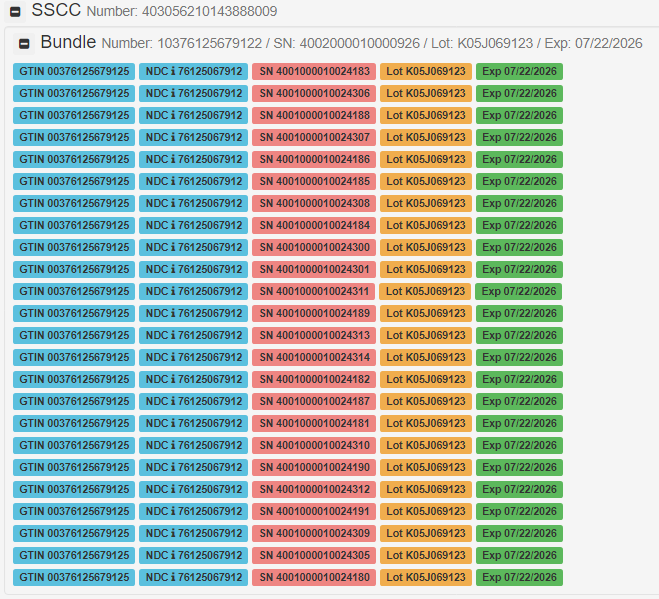
- Each product should have a “NDC” linked to it.
- Click in the “i” next to the “NDC” and a window will pop up with the products Information

Was this article helpful?
That’s Great!
Thank you for your feedback
Sorry! We couldn't be helpful
Thank you for your feedback
Feedback sent
We appreciate your effort and will try to fix the article